Connect Four vs. your own AI: a minimax game
The game Connect Four, where your opponent is an AI you built yourself. It looks moves ahead, and you choose how far it thinks.
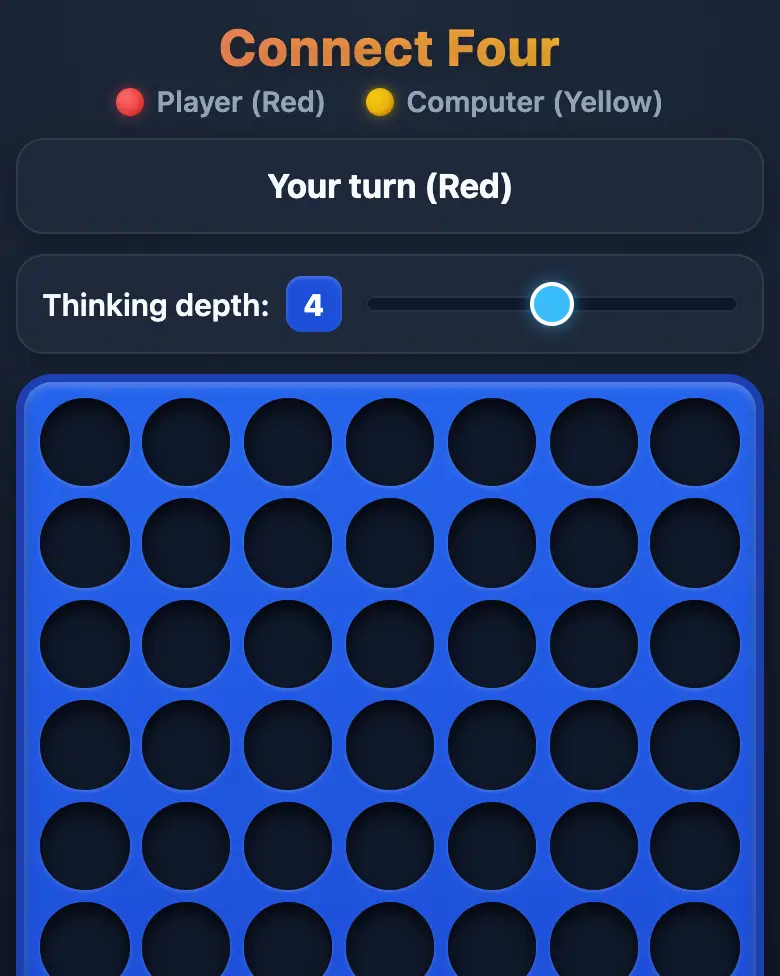
Play the example
✓ Prompt tested in Gemini (signed out): worked 3 out of 3 times
- Level
- Pro
- You make
- A game with an AI opponent (minimax) in a single HTML file
- Age
- 12+
- Time
- ≈ 40 min
- Tools
- Gemini
- Account
- Not needed
What you’ll get
You’ll make a game where the opponent really thinks: it checks thousands of positions. That’s how the first chess programs worked.
Steps
-
Open gemini.google.com. If you’re under 13, do it together with a parent, on their device.
-
Copy the whole prompt and send it:
Make a "Connect Four" game against the computer in a single HTML file. Don't load anything from the internet: no Tailwind, no CDN, no fonts, no images and no libraries — only your own CSS and JavaScript inside the file. Don't save anything in the browser's storage. The whole interface in English. The board is 7 columns × 6 rows, and a build the board from div cells in a CSS Grid (not canvas); tapping any cell of a column drops a piece into that column with a falling animation. The player is red, the computer is yellow, and the player goes first. The computer's AI is minimax with alpha-beta pruning; position score: +1000 for a win, for every window of four cells count your own and the opponent's pieces (3 of your own and 1 empty = +5, 2 of your own and 2 empty = +2, 3 of the opponent's and 1 empty = −4), and the center column gives +3 per piece. A "Thinking depth" slider from 1 to 7, default 4. Start the computer's move with setTimeout(aiMove, 100) after the player's move so the screen can update. Search with iterative deepening: depth 1, 2, 3… up to the chosen depth, but stop when 2 seconds have passed and play the best move found so far; the computer must always make a move. After the computer's move, show how many positions it checked and how many milliseconds it thought. The winning four is highlighted, with a big "You win!", "You lose" or "Draw" message and a "New game" button. Code structure: the board is an array board[row][col] of 0, 1 and 2; functions dropPiece(col, player), getValidCols(), checkWin(player), scorePosition(), minimax(depth, alpha, beta, isMax), aiMove(), resetGame() — declare each exactly once. Check that all variables are declared, all functions exist, and there are no syntax errors. Everything must look good on a phone. Use exactly these ids in the HTML and the code: board, status, depth, depthValue, stats, newGame. Minimax is plain recursion with the fixed depth from the slider; if the depth is above 5, limit the search to 2 seconds. Show the result in Canvas. Answer directly as an app in Canvas with the preview tab. -
Wait about a minute, click Preview and try all the buttons and sliders.
-
Check the AI (see the question above).
-
Click Download (sometimes it’s the Export menu) — the file opens in any browser.
Change the prompt
Change only the words, and keep the rules about the internet and Canvas.
- “7 × 6” → “8 × 7” — is it harder for the AI now?
- “the player goes first” → “the computer goes first”
If it doesn’t work
- The computer doesn’t move? Write:
The computer doesn't make a move after mine. Find and fix the error. - Freezes at high depth? Write:
At depth 7 the game freezes. Limit the search time to 2 seconds. - No Preview button? Write:
Show the result in Canvas.
Sending work to the gallery opens soon.