My 3D house: a 3D scene in plain JavaScript
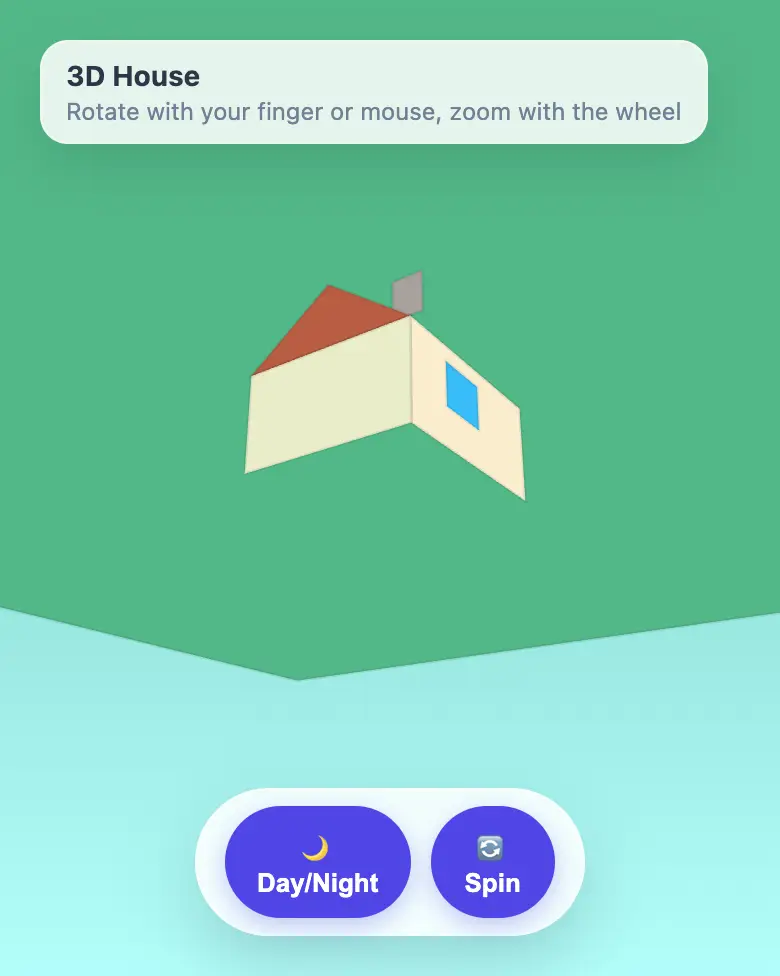
Build a little 3D house with a roof, windows, a tree, and day and night. Spin it with your finger: a first step toward Blender and your own 3D home.
✓ Prompt tested in Gemini (signed out): worked 3 out of 3 times
- Level
- Advanced
- You make
- A 3D scene in one HTML file
- Age
- 12+
- Time
- ≈ 40 min
- Tools
- Gemini
- Account
- Not needed
What you’ll get
A little house on a lawn with a tree: spin it with your finger and it turns in 3D, pinch to zoom in, and press a button to switch on night with stars and glowing windows. Press “Play the example” above — Gemini made it from the prompt below.
Steps
-
Open gemini.google.com. If you’re under 13, do it together with a parent, on their device.
-
Copy the whole prompt and send it:
Make a 3D house in one HTML file. Don't load anything from the internet: no Tailwind, CDN, fonts, images or libraries — only your own CSS and JavaScript inside the file. Don't save anything in browser storage. Draw the 3D yourself on a canvas using simple perspective projection in JavaScript (no three.js). On a green lawn stands a house: walls, a triangular roof, a door, two windows and a chimney; a tree is next to it. Describe the house as a list of vertices and faces; every frame, sort the faces by distance from the camera (farthest first) and draw only the faces whose vertices are all defined. The faces are filled with different shades, and far faces are not visible through near ones. I spin the house with my finger (with the mouse on a computer) and it rotates in 3D; I zoom with two fingers or the mouse wheel. Two buttons at the bottom: "Day/Night" (at night there is a dark sky, stars and glowing windows) and "Spin" (the house slowly rotates by itself). Before answering, check that all variables, classes and functions are declared and written without typos. Everything should look good on a phone. Store points as plain arrays [x, y, z], with no classes or helper constructors; write all rotation and projection functions yourself and declare them before use. Show the result in Canvas. -
Wait about a minute, press Preview and try every button and slider.
-
Check the AI (see the question above).
-
Press Download (sometimes it’s under the Export menu). The file opens in any browser. Show it off in class!
Change the prompt
Before sending, swap a few words to make your own version. Change only the words, and keep the rules about the internet and Canvas.
- “two windows and a chimney” → “four windows, a balcony and a chimney”
- “a tree is next to it” → “two trees and a fence are next to it”
If it doesn’t work
- The AI says it changed everything, but the result looks the same? Write:
Nothing changed. Show the updated version in Canvas. - No Preview button? Write:
Show the result in Canvas.
Sending work to the gallery opens soon.